How To Draw Comics
- 4.3
- Rating
- 5.00M
- Installs
- Free
- Price
 Analysis by App-foxy
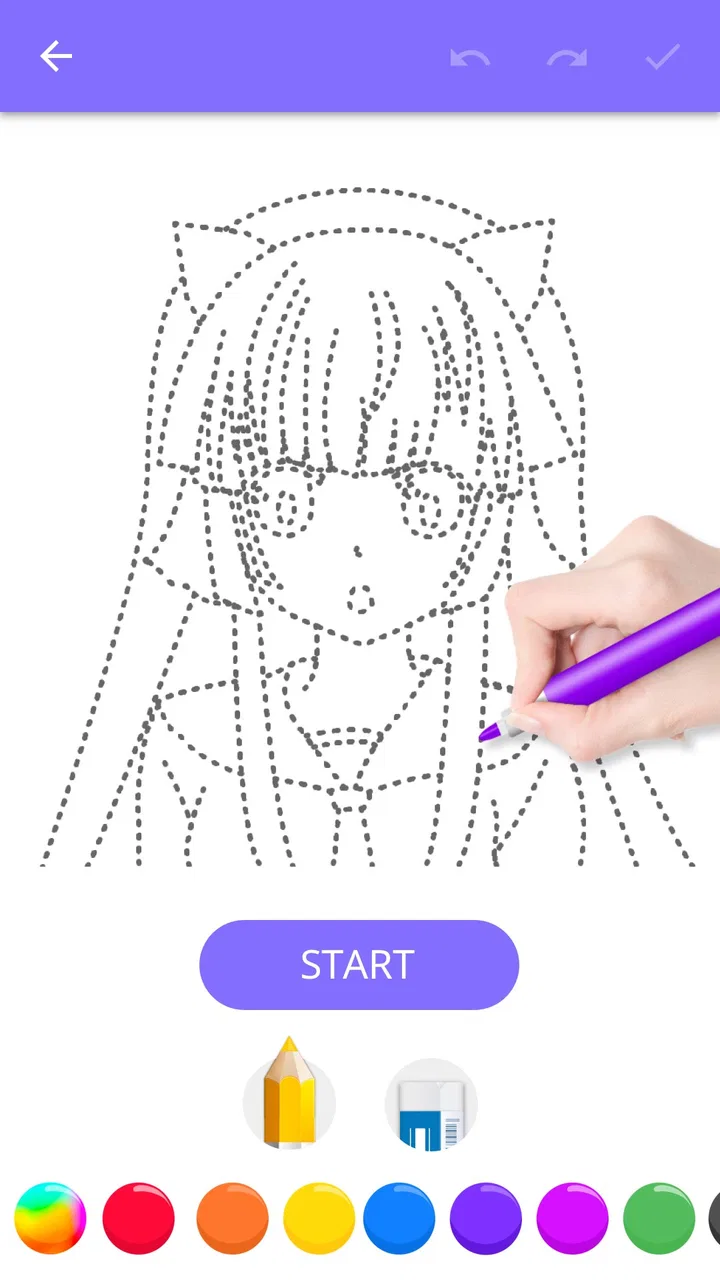
I approached How To Draw Comics as a small, focused drawing teacher rather than a full comic-making studio. That distinction matters. This free Comics app from Creative APPS is built around learning popular comic-style drawings step by step, so its appeal is immediate: open it when you want a simple lesson, follow the visual progression, and practice without first learning a complicated interface.
After spending time with it, I think its strongest quality is its narrow purpose. It does not try to replace a professional illustration app, a digital sketchbook, or a complete comic editor. Instead, it gives beginners a guided way to break a character or comic image into manageable stages. For a child, a casual doodler, or an adult who feels they “cannot draw,” that approachable structure can be more useful than a blank canvas full of tools.
The app is free to start, carries an Everyone age rating, and has reached more than five million installs. Its average score sits at 4.3 from roughly nineteen thousand ratings, which fits my impression: this is a straightforward learning aid with broad appeal, although its simplicity will also be its main limitation for experienced artists.
You May Also Like

 Pandora - Music & Podcasts
Pandora’s Music Is Easy to Start, but Harder to Recover
Pandora’s strength is its low-effort path from a seed to a station. Its weak spot is how much confidence it asks you to place in connection, setup, and quiet recovery.

 AccuWeather: Weather Radar
AccuWeather Review: A Quick, Clear Forecast for Everyday Decisions
For everyday plans, the best forecast is the one you can understand quickly. AccuWeather makes rain timing, radar, and local conditions easy to act on, with a few trade-offs.

 Hill Climb Racing
Why Hill Climb Racing Still Turns Crashes Into One More Run
A tiny car, a bumpy hill and one more upgrade: Hill Climb Racing keeps resurfacing because its simple chaos makes every near-miss feel personal.

 AliExpress - Shopping App
AliExpress Makes Global Shopping Feel Personal, but Shoppers Bear the Risk
AliExpress turns a global marketplace into a pocket-sized discovery engine. Its reach is useful, its shopping loop compelling, and its trade-offs easy to miss.

 Lords Mobile: Kingdom Wars
Lords Mobile Is a Kingdom-Building Routine, Not a Quick Match
A case-by-case verdict on the building, battles, device demands, and social commitments that make Lords Mobile rewarding for some players and exhausting for others.

 PDF Scanner app - TapScanner
TapScanner Makes Paperwork Easier to Capture, Check, and Share
TapScanner makes scanning with a phone feel less like a rescue operation and more like a dependable step in getting work done. Its capture tools are useful, though not flawless.
More From Our News Desk
View All News


How the current drawing experience feels
I find the current drawing experience most useful when I treat each guided image as a sequence of decisions, not just a picture to copy. In this section, I’ll look at how that lesson-first approach fits short practice sessions and shared use, then consider how the app’s established version shapes expectations for returning learners.
A lesson-first approach instead of a blank page
The first thing I noticed is that the app’s value comes from reducing the intimidation of drawing. A blank page asks you to make too many decisions at once: proportions, pose, outline, details, and shading. A step-by-step comic lesson gives you a sequence to follow. I could concentrate on one visible change at a time instead of wondering where to begin.
That makes the app especially suitable for short practice sessions. If I had a few minutes while waiting for an appointment or wanted an easy activity to share with a child, I would choose this over opening a professional drawing package. The lesson format creates a clear beginning and end, which is helpful for people who lose motivation when a project feels open-ended.
The approach also works well for learning observation. Rather than copying a finished picture immediately, I can notice how a simple form develops into a recognizable comic figure. That process encourages me to look at the order of construction: broad shapes first, then identifying features, then the lines that give the drawing its personality.
Who will get the most from it
Beginners are the obvious audience, but I would divide them into a few groups. Younger users can use it as a guided creative activity, particularly when an adult wants something more constructive than passive screen time. Older beginners can use it to build confidence before moving to more demanding art lessons. Casual doodlers may enjoy it because it turns a vague wish to draw comics into a repeatable routine.
It can also help someone who already sketches but struggles with comic proportions. Repeating a lesson several times, first while following every stage and later from memory, is a practical way to understand the visual rhythm of a character. I would not call that a substitute for studying anatomy or perspective, but it is a gentler entry point.
On the other hand, I would skip it if my main goal were to create finished comic pages inside the same app. The learning focus is more important than production features here. Artists looking for layers, advanced brushes, panel layout, lettering, export control, or detailed color work will likely be happier with a dedicated illustration or comic-creation tool.
A realistic everyday workflow
My preferred routine would be simple. I would choose one lesson, keep a sheet of paper or a tablet beside the device, and pause after each stage rather than rushing to the final image. First I would copy the large shapes lightly. Then I would compare my proportions with the example before adding smaller details. At the end, I would redraw the same subject without looking continuously at the guide.
That last step is where the app becomes more than a tracing exercise. The guide can show an order of operations, but memory practice reveals whether I actually understood it. If the result looks uneven, I can return to the lesson and identify which stage caused the problem instead of erasing the entire drawing and starting randomly.
For a parent, this workflow also makes the app easier to use with a child. Rather than handing over the phone and expecting the lesson to do everything, I would encourage the child to explain what changed between stages. That turns the activity into a small observation game and makes the drawing process feel less like copying.
What the free model means in practice
The app is listed as free, with in-app purchases priced at $1.99 per item. That makes it easy to try without committing money first, but I would still treat the free experience as an evaluation period. Before investing in any optional content, I would check whether the available lessons match the kind of comic characters or drawing style I want to practice.
The price point is modest for a focused learning aid, yet value depends on how often I return. Someone who completes a few lessons and never opens the app again may not need any purchase. Someone who enjoys repeating the exercises and wants more variety could find a small optional purchase reasonable. I would avoid buying simply because a lesson feels difficult; difficulty is often a signal to repeat an earlier stage, not proof that more content is needed.
What has changed and what the current version suggests
The version history is best read as context for the app’s focused role, not as a promise about particular features. I’ll consider what a stable, compact drawing aid offers a household, how to keep practice coordinated across a shared device, and when a learner may be ready to move on to a broader art tool.
The place of version 1.2.2
The current version is 1.2.2, and the app was released on June 8, 2017. That history tells me I should judge it as an established, compact utility rather than expect the pace or depth of a modern creative suite. Its identity is already clear: guided comic drawing, approachable presentation, and a low barrier to entry.
I would not read the version number as a promise of a particular feature set. What matters for a new user is whether the present lesson experience feels understandable and useful on a compatible device. The minimum operating system is Android 5.0, so people using older supported hardware may have a chance to run it, while anyone relying on a newer phone should still pay attention to how comfortably the interface fits their screen.
The developer, Creative APPS, has kept the product recognizable as a learning app rather than turning it into an overloaded art workstation. That restraint is part of its appeal. Many drawing applications collect tools until beginners spend more time choosing brushes than practicing lines. Here, the narrower concept makes the first session easier to understand.
How the app’s evolution affects existing users
For someone who has used it for a while, the main benefit of an established version is familiarity. A returning learner can pick up the same kind of guided exercise without rebuilding a workflow around a new creative system. That is valuable when the goal is repetition, because consistent practice depends on removing unnecessary friction.
There is a trade-off, though. A compact app can remain comfortable precisely because it does not keep changing direction, but it may also feel limited beside newer drawing tools. Existing users who now want polished comic pages may outgrow it even if they still appreciate its lessons. I would keep it as a warm-up or teaching aid rather than expect it to become my only art application.
The large install base and strong rating suggest that the basic concept connects with many people, but popularity should not be confused with professional depth. I would use those signals as reassurance that the app is worth trying, not as evidence that it covers every part of comic creation.
Three useful ways to go beyond the obvious lesson
My first practical tip is to use the app for “construction notes.” After completing a drawing, I would write down the order in which the major forms appeared and which proportions were hardest to maintain. Over several sessions, those notes can become a personal checklist for drawing similar characters without guidance. This turns individual lessons into reusable knowledge.
Second, I would deliberately change the scale of the exercise. I could follow the same lesson once in a small space and once on a larger sheet or canvas. If the drawing falls apart when enlarged, the problem is probably not detail but proportion or spacing. That is a useful diagnostic that a finished reference image alone would not provide.
Third, I would treat the final stage as a design prompt rather than an endpoint. After copying the guided image, I would alter one nonessential element: the expression, a small accessory, or the direction of the pose. The app remains the teacher, but I begin making decisions of my own. That is the best way to avoid becoming dependent on step-by-step copying.
Where the usual alternatives are better
Compared with a blank sketchbook, this app offers more direction and less freedom. I prefer it when I am stuck or teaching a beginner, but I would choose the sketchbook when I want to invent a character from scratch. The two tools serve different moments in the creative process.
Compared with a general drawing app, it is easier to approach but less flexible. A full drawing app normally rewards users who want to experiment with brushes, layers, color, and composition. How To Draw Comics is better when the question is “What should I draw next, and how do I start?” A general art app is better when the question becomes “How do I finish and refine a complete illustration?”
Compared with a video tutorial, the app may feel more direct because the drawing task is organized around visible stages rather than a long spoken explanation. A video can offer more personality, theory, and demonstrations from multiple angles, while an interactive lesson is easier to pause and revisit at the exact point where I made a mistake. I would use the app for structured repetition and videos for broader technique.
The gaps I would want users to understand
The biggest gap is the difference between learning a sequence and understanding comic art as a whole. Step-by-step guidance can teach me how one example is assembled, but it does not automatically teach storytelling, panel pacing, dialogue placement, perspective across several scenes, or consistent character acting. Those skills require separate practice.
Another limitation is that a guided result can create a false sense of progress. If I only copy the displayed stages, I may produce a recognizable image without knowing how to draw it from another angle. That is why I recommend alternating guided copying with memory redraws and small changes. The app is most effective when I use it as scaffolding, not as a permanent substitute for independent drawing.
I would also be cautious about expecting a deep professional workflow. If my goal is to publish a multi-page comic, organize panels, add lettering, or maintain editable artwork, I would move to a specialized tool. This app can help me prepare by improving confidence and basic construction, but it is not the place I would manage a finished comic project.
Parents should also decide how much independence they expect. The Everyone rating makes the app approachable for a broad audience, but a young child may still benefit from encouragement and occasional help interpreting the stages. The lesson can guide the hand; it cannot replace patience, especially when the first attempts look different from the example.
What I would watch before committing
If I were deciding whether to keep the app installed, I would watch three things during the first week. First, do the lessons make me draw more often, or do I merely browse them? Second, can I reproduce a subject after closing the guide? Third, do the available exercises match my interests well enough to support regular practice?
I would also pay attention to the point at which I start wanting tools the app does not emphasize. That moment is not a failure. It simply means I have moved from learning basic comic forms to producing my own artwork. Keeping this app for warm-ups while using another tool for final work could be a sensible combination.
For existing users, the question is whether version 1.2.2 still fits their routine. If it opens quickly, remains easy to follow, and provides lessons they enjoy repeating, its age may not matter much. If they expect frequent new creative capabilities, advanced editing, or a full comic pipeline, they should set those expectations elsewhere rather than wait for this focused concept to behave like a different kind of product.
My recommendation for different kinds of artists
I recommend it to a complete beginner who wants a friendly first step into comic drawing, especially someone who becomes discouraged by complex art software. I also recommend it to families looking for a simple creative activity and to casual artists who want a guided warm-up before working independently.
I am more cautious for intermediate artists. They may still enjoy it as a source of prompts or a way to practice construction, but they should not expect it to challenge every part of their skill set. For professionals, illustrators, and aspiring comic creators who need production tools, a dedicated drawing or comic-layout app is the more appropriate main choice.
Overall, Creative APPS has made a useful little teacher rather than an all-purpose studio. Its free entry, Everyone rating, clear lesson focus, and broad reach make it easy to recommend as a starting point. The best results come when I pause, redraw from memory, change small details, and gradually leave the guide behind. Its real strength is helping a hesitant beginner begin.
I would install it when I wanted structure, keep a separate sketchbook nearby, and judge success by whether I became more willing to draw without assistance. If that is the goal, How To Draw Comics earns its place as a practical beginner app. If the goal is complete comic production, I would treat it as the first step in a larger toolkit, not the final destination.
FAQs for How To Draw Comics
01What are the main features of the How To Draw Comics app?
The How To Draw Comics app offers a wide range of features designed to help both beginners and experienced artists. It includes step-by-step tutorials, a variety of drawing tools, and templates for different comic styles. Users can also access video lessons and participate in community challenges to enhance their skills.
02Is the How To Draw Comics app suitable for beginners?
Absolutely! The app is designed with beginners in mind, offering simple, easy-to-follow tutorials that guide users through the basics of comic drawing. Each lesson is structured to build foundational skills, making it a great starting point for those new to drawing comics.
03Does the app require an internet connection to use?
While the How To Draw Comics app offers offline access for most of its drawing tools and saved projects, an internet connection is needed for downloading new tutorials, accessing video content, and participating in online challenges. This ensures you always have the latest content and features.
04Are there in-app purchases or subscription fees?
Yes, the How To Draw Comics app offers both free and premium content. While basic tutorials and tools are available for free, advanced lessons and additional features may require in-app purchases or a subscription. This allows users to choose the level of access that best suits their needs.
05Can I share my creations on social media directly from the app?
Yes, the app allows users to easily share their comic creations on social media platforms like Instagram, Facebook, and Twitter. This feature is designed to help artists showcase their work, receive feedback, and engage with a community of comic enthusiasts.
Pros
- User-friendly interface for beginners.
- Step-by-step tutorials enhance learning.
- Wide range of comic styles available.
- Offline access for drawing anywhere.
- Supports stylus for detailed work.
Cons
- Limited free content before paywall.
- Occasional ads can interrupt workflow.
- Some tutorials lack depth.
- Requires in-app purchases for full access.
- No community feature for sharing art.

How To Draw Comics
Gallery